News & Push Messages are a great way to alert your employees to news in the WLP app and thus increase the activity of your workforce.
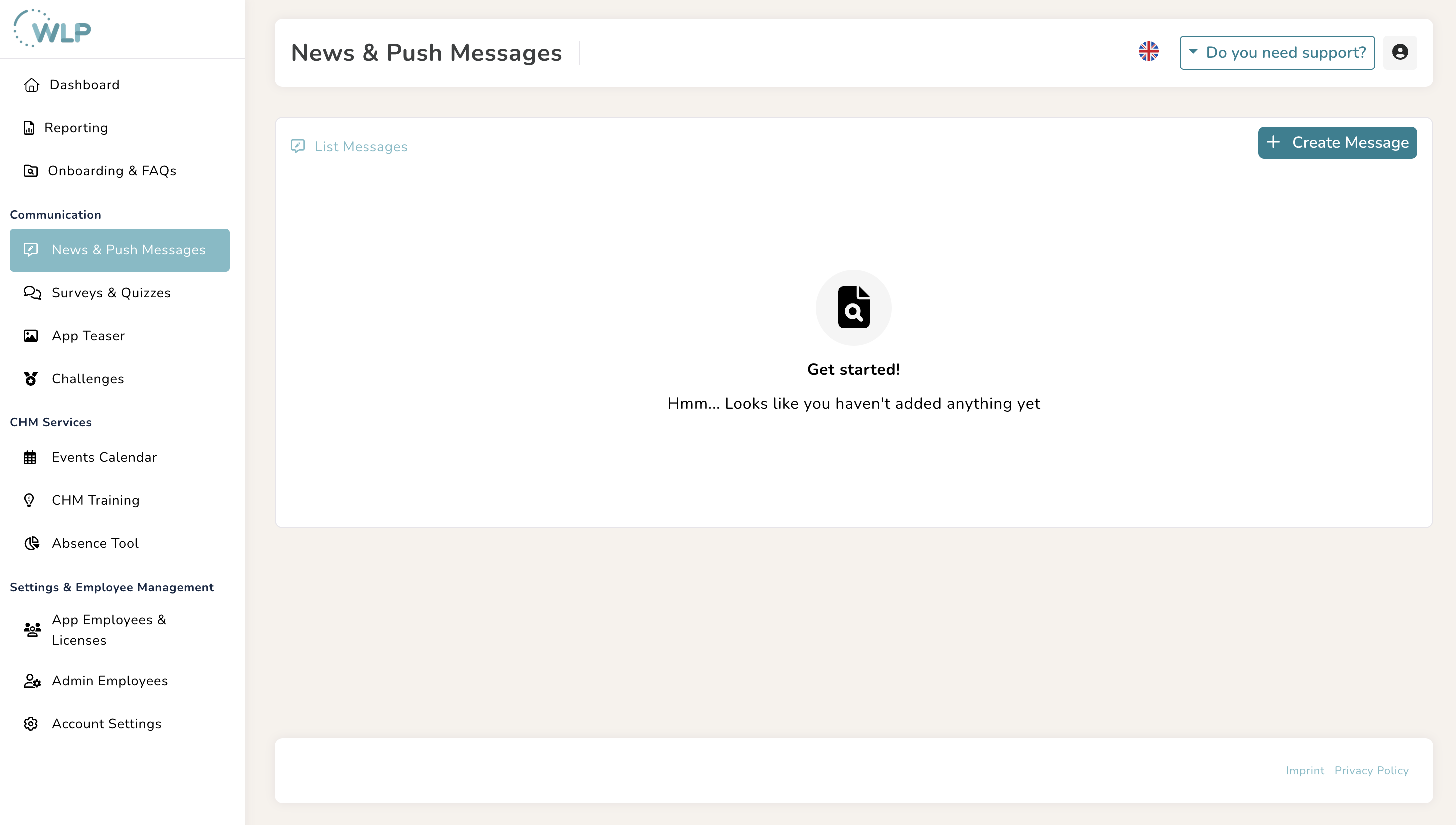
Under the menu item “Communication” and “News & Push Messages” you have the option of sending in-app messages and push notifications to your employees. News or in-app messages are messages that are placed in the mailboxes of WLP app users. You can find them in the WLP app at the top right under the small newspaper icon.
Push notifications allow you to highlight news and display them on the home screen of your users' mobile devices. By tapping on the push notification, they are taken directly to the news.
To create a news item, navigate to “News & Push Messages” and click on “Create message.” You can now create your news item in the following input mask:
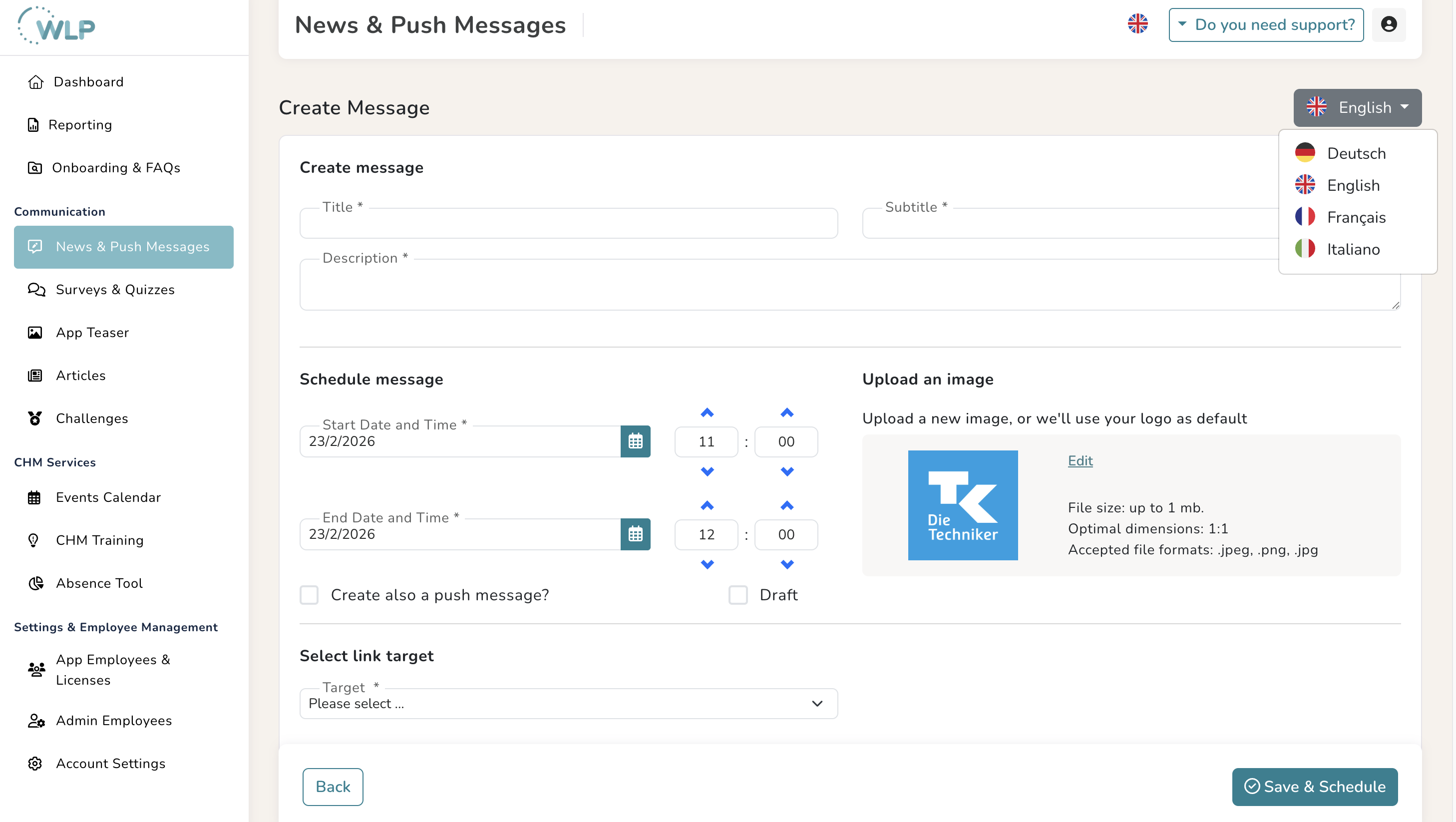
- First, define the start and end date and time of your message.
- News items can optionally refer to a target, so in the next step, select the target of your message. You can refer to surveys or their results, quizzes, the event calendar, or a URL (e.g. links to websites or articles). These must be created before you create a message. Then enter a button text that calls your employees to action. Otherwise, you can also create news items without a target if you simply want to inform your employees, for example, in a welcome message for the kick-off meeting.
- Now give your message an appealing title.
- Then you can write your message.
- Now save your message so that it is sent at the specified time.
Notes:
- News items can only be edited until their start time has passed. This means you cannot reuse news items.
- Please also note that emojis cannot be used in titles, subtitles, or messages. Otherwise, an error message will appear when you create the message.
News that your employees should not miss under any circumstances is best supplemented with a push message. Here's how to add one:
- Activate the button “Create also a push message?” below the date entry field. Additional windows will now open for entering the date and time.
- Select the date and time for sending the push message. This will consist of the title and subtitle of your news item.
Notes:
- If the news item is linked to a push message, you cannot edit it. Push messages go live immediately after they are created.
- Push messages are only displayed if they are enabled in the device settings for the WLP app. If individual employees do not receive push notifications, they probably did not allow them when installing the WLP app. However, this can also be enabled retrospectively in the app settings. You can access the app settings via the icon with the three horizontal bars. To enable push notifications, tap on “Reminder” and select the option “Allow app notifications.”
Tips for you:
You can also save your message as a draft by activating the switch below the date entry field. Drafts can be edited at a later time.
Your perfect news item:
There is no character limit for the title and description of your news item. However, please note that it must be readable on a smartphone. It is therefore best to keep it short, concise, and clear. It is best to mention the most important information right at the beginning of your news item. We recommend the following character limits to ensure optimal display:
- Title: maximum 35 characters
- Subtitle: maximum 42 characters
- Text: 450 characters.
News and push notifications are a great way to stay in touch outside of the workplace. However, make sure you don't contact your employees too often with news, especially push notifications. Ask yourself in advance: “Do I have something important to say?” Avoid daily contact with your employees and messages without added value such as “We wish you a great start to the week.”
Leave your news in the inbox for a maximum of one to two weeks. This ensures that it remains clear and informative for your employees.
Your perfect title and subtitle:
The title should summarize the content of your message in as few words as possible. Ideally, don't use abbreviations and ask yourself “What is my news item about?”. With the subtitle, you can now integrate additional information, such as the date of an event, to increase your employees' interest.
You can also add a short description for your in-app news item. Ideally, you should answer the following questions: “Why are you informing your employees about this?” or “What do you expect from your message?”
Your button text should now contain a strong CTA (call to action) that clearly tells your employees what they can do when they click this button, e.g. register for an event, fill out a survey, or read an article.
Here are three examples of good titles and subtitles:
1. Welcome message
Title: Welcome to the WLP app.
Subtitle: Get started right away and do something good for yourself!
2. Office yoga
Title: Join us: Office yoga
Subtitle: Sign up for our new yoga class.
3. Survey
Title: We want your opinion!
Subtitle: Fill out the survey about Health Day.
Was this article helpful?
That’s Great!
Thank you for your feedback
Sorry! We couldn't be helpful
Thank you for your feedback
Feedback sent
We appreciate your effort and will try to fix the article