Surveys give you the opportunity to learn more about your employees' needs, experiences, habits, and preferences. This allows you to tailor your health measures even more specifically and better adapt them to your workforce.
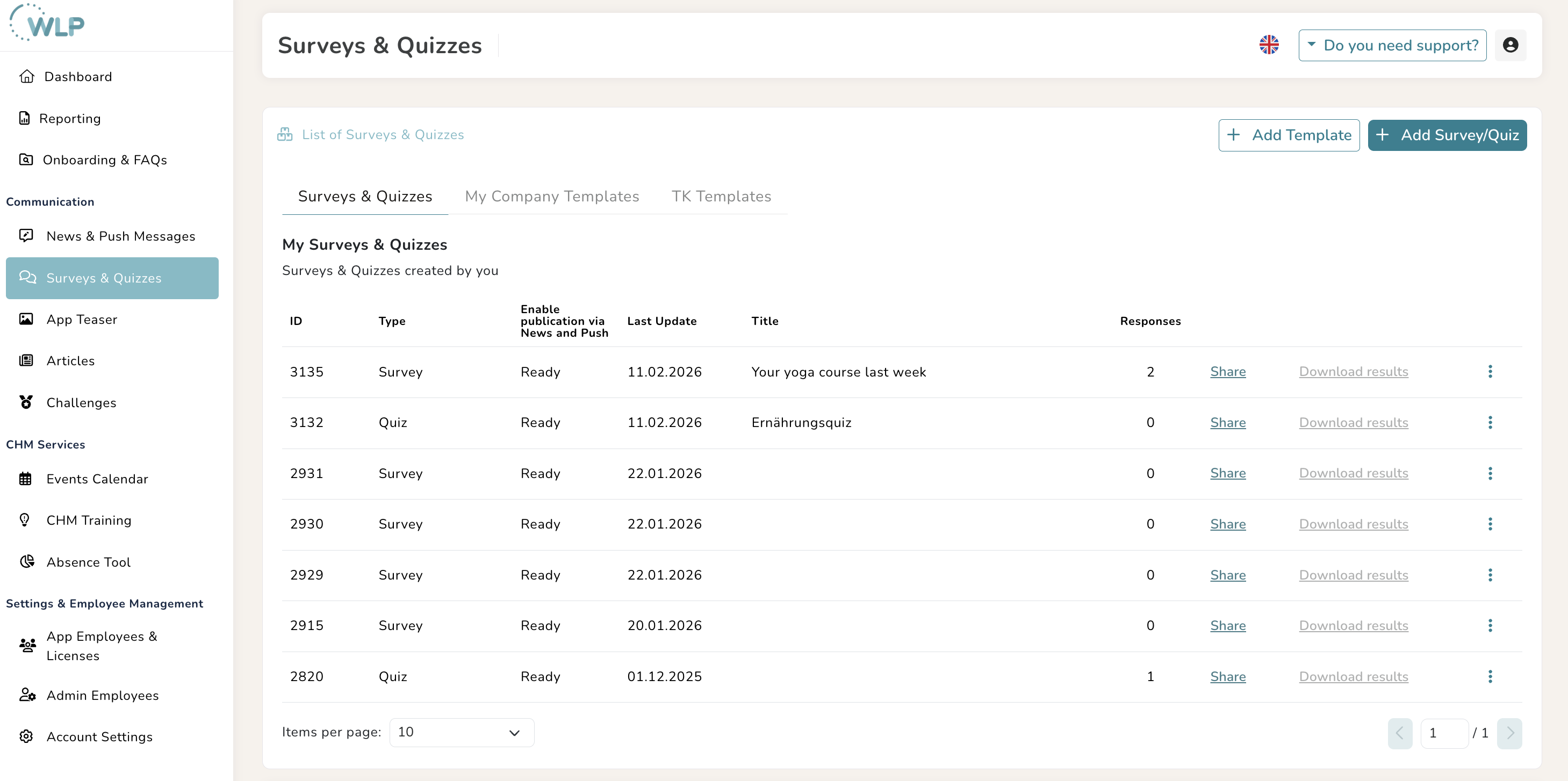
You can find the ‘Surveys & Quizzes’ section under ‘Communication’ in the left-hand menu. To create a survey, follow these steps:
- Click on ‘Add Survey/Quiz’ and select ‘Survey’ from the drop-down menu in the top left-hand corner.
- If you want to use one of the existing templates, simply select it. Templates are divided into templates you have created yourself (“My Templates”) and templates created by TK (“TK Templates”). All fields from a selected template will be transferred to the new survey. Otherwise, you can easily create your own survey by setting the “Use Template” field to “No Template.”
- Now define a title and description.
- If you want to ensure that the survey can only be completed once per user, activate the “Allow only one submission per respondent/employee” switch.
Important: Participation in your survey
To ensure that your employees are aware of the new survey, make sure you communicate it through all channels. Use the news & push function or an app teaser for this purpose.
You can also raffle off small prizes among the survey participants to further increase motivation and engagement.
In addition, you can communicate your survey results to the workforce via the WLP back office and highlight particularly interesting findings, for example, to increase willingness to participate in future surveys. To share the results, you can also use the small button with the arrow on the right-hand side of the survey & quiz list view.
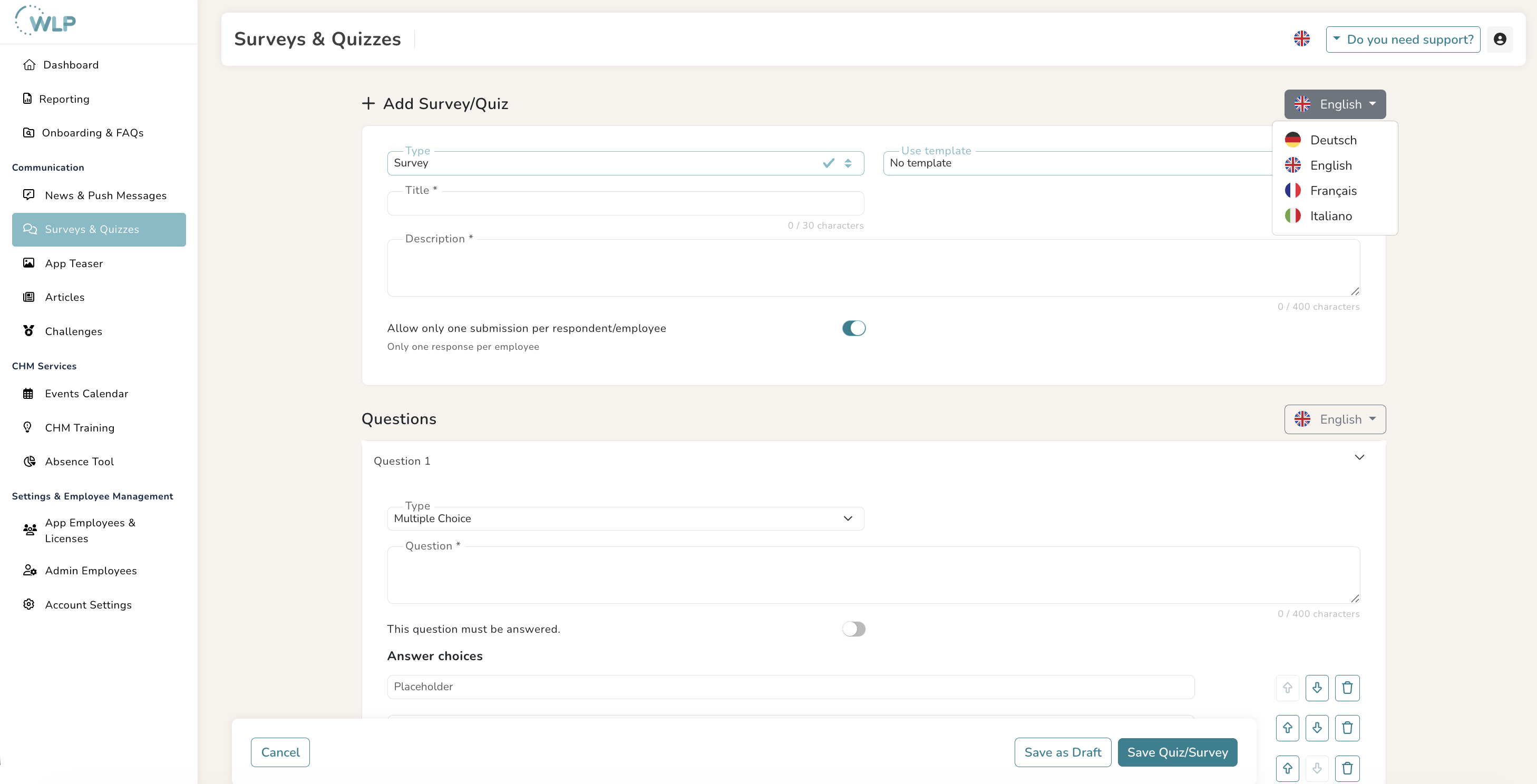
- Now it's time to create your questions. To do this, select the question type in the input mask and enter a question text.
- By clicking on the small button “This question must be answered,” you can specify whether the question should be mandatory.
- If you have selected the “Multiple choice” type, you can now specify your answer options. You can sort them as you wish using the arrow keys on the right-hand side.
- You can now add as many questions as you like to your survey. To do this, click on “Add question” and repeat steps 5, 6, and 7.
- Once you have compiled all your questions, you can save your survey. Your survey will appear in the list of surveys and quizzes.
Note:
- You can export your survey results in raw data form as an Excel file from the list view of surveys and quizzes using the small button with the diagram. You can then evaluate them there and display them in the form of diagrams, for example. Please note: This function is only available if there are at least five survey participants.
- You can also share the survey results as news via the app using the button next to it. This allows you to share the results with your employees.
Tips for you:
Don't want to publish your survey right away? Then activate the “Save as draft” switch to continue editing later.
After creating your survey, you can preview it in the WLP back office. To do this, go to the list of surveys and quizzes, click on the button with the three dots on the right, and then click on “Preview.”
Occasions for surveys
Surveys are a great way to gather feedback from your employees. Especially when dealing with sensitive or confidential information, the WLP Back Office allows you to ensure that survey participants remain anonymous and can express themselves freely.
Here are two particularly suitable occasions for conducting a survey in the WLP app:
- Use a short feedback survey to gather employee opinions after an event. A template is available for this in the back office.
- With the survey tool in the WLP back office, you can create an annual satisfaction survey that captures the mood of the workforce and reveals potential for optimization.
The perfect survey
Depending on the type of questions, a survey can require a relatively high level of commitment from your colleagues. Therefore, make sure that it is not too extensive. As a rule, 3-10 questions is a good length for your survey.
If your survey does require more questions, you should make sure to emphasize how much you appreciate your employees' willingness to participate.
Also note that the more extensive the survey, the lower the frequency should be. This will ensure that your colleagues remain engaged.
To ensure that the survey is well structured, it is best to start with the more general questions and work your way through to the detailed and complex topics step by step.
If you ask for a rating - for example, from 1 to 5 - always choose an odd number of response options. This ensures that there is a neutral middle ground that undecided employees can choose.
Also, make sure you create your survey as unbiased and neutral as possible. This is the only way to ensure that you obtain honest and realistic assessments from your colleagues and gain maximum insight. It may be useful or necessary to consult the works council or staff council.
Was this article helpful?
That’s Great!
Thank you for your feedback
Sorry! We couldn't be helpful
Thank you for your feedback
Feedback sent
We appreciate your effort and will try to fix the article