With the help of the event calendar in the WLP back office, you can display your company health measures in the WLP app and communicate them to your employees.
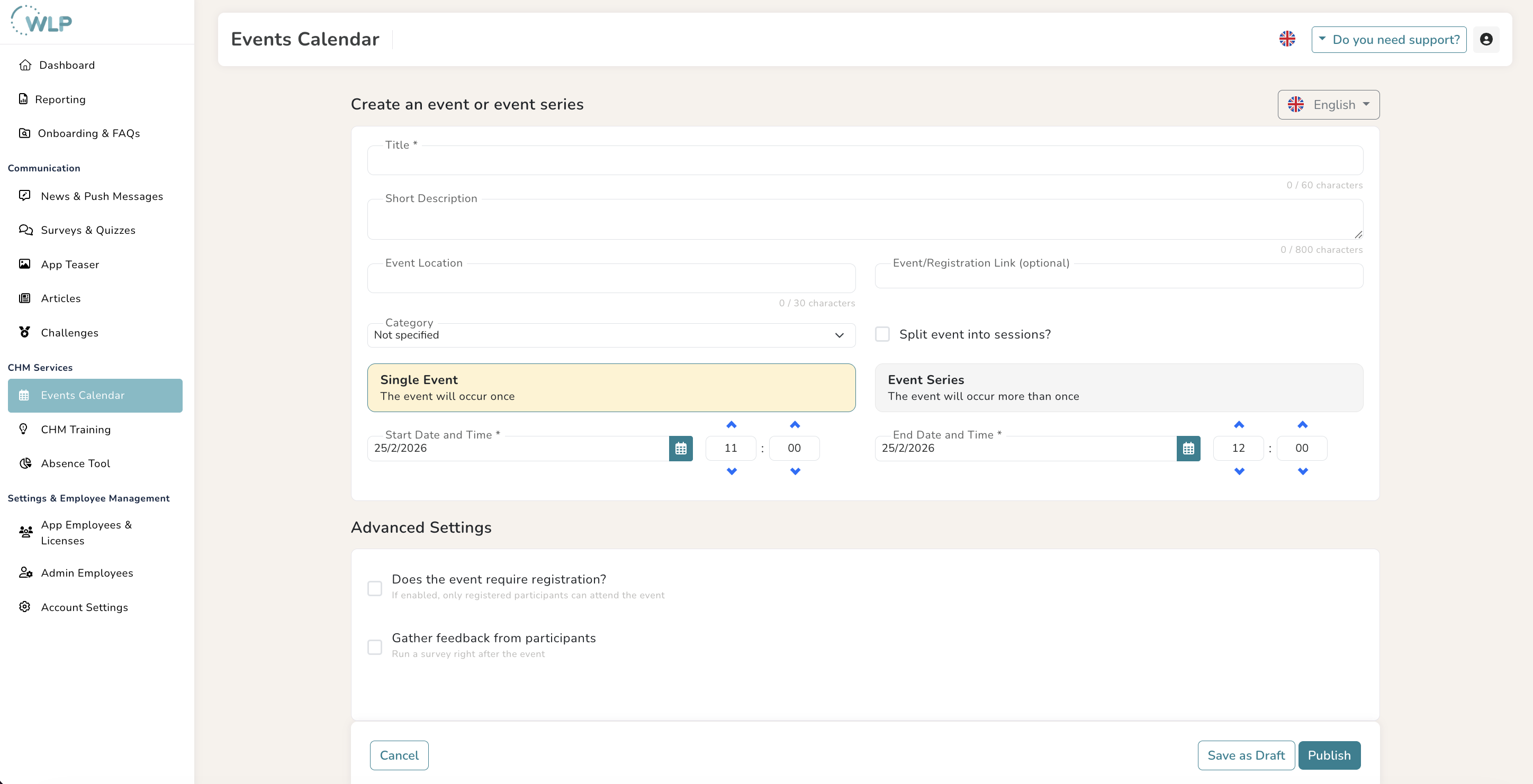
To create a simple event in the calendar, click on “Event Calendar” under “CMH Services” in the menu on the left. Then click on the “Add Event” button on the right:
- Enter a title for your event in the input mask.
- Now there is space for a short description of your event.In the field below, you can now specify a venue for your event.
- If your event fits into one of the predefined categories, select it from the drop-down menu. If not, simply leave the selection set to “No category.”
- Now set the start and end times for your event. You can choose whether this should be a “One-time event” or an “Event series.” In the case of a “One-time event,” you don't need to enter anything else and your event will take place once. If you select “Event series,” you can decide whether your event will be repeated weekly or custom. To create an event series in the calendar, check the box “Repeat this event weekly” in the advanced settings. In the field that appears, enter the number of weeks that the event should be repeated.
- Using the language selection in the top right corner, you can create your event in different languages. To do this, select the language from the menu and enter your translation in the empty text fields.
- To collect feedback from your employees, you can check the box “Collect feedback from participants” in the advanced settings of your event and send a survey to all participants after the event. To do this, select the appropriate survey template from the list.
- Save the event and publish it in the event calendar for your employees.
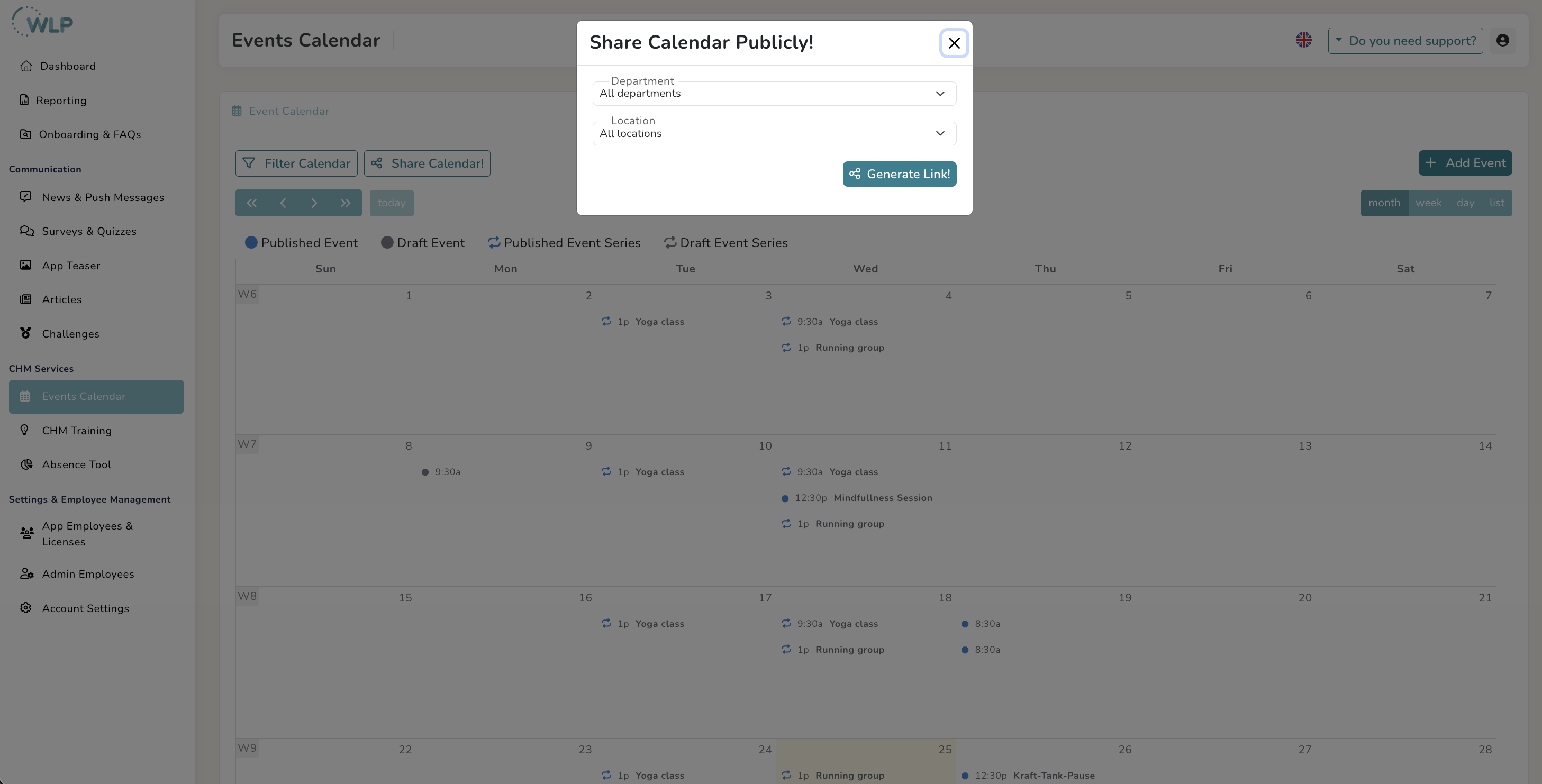
-> Once the event has been created, you can also share it externally via the event calendar view using the generated link.
Note:
- Once you have published your event, you can view it in the event calendar and edit it with a click. Please note: You cannot edit an event that has already started or has registrations.
Tip for you:
Don't want to publish your event right away? Then click on “Save as draft” to continue editing later.
Was this article helpful?
That’s Great!
Thank you for your feedback
Sorry! We couldn't be helpful
Thank you for your feedback
Feedback sent
We appreciate your effort and will try to fix the article