Do you need help managing the WLP back office or want to give someone in your organization access? Then you can easily create additional admin users.
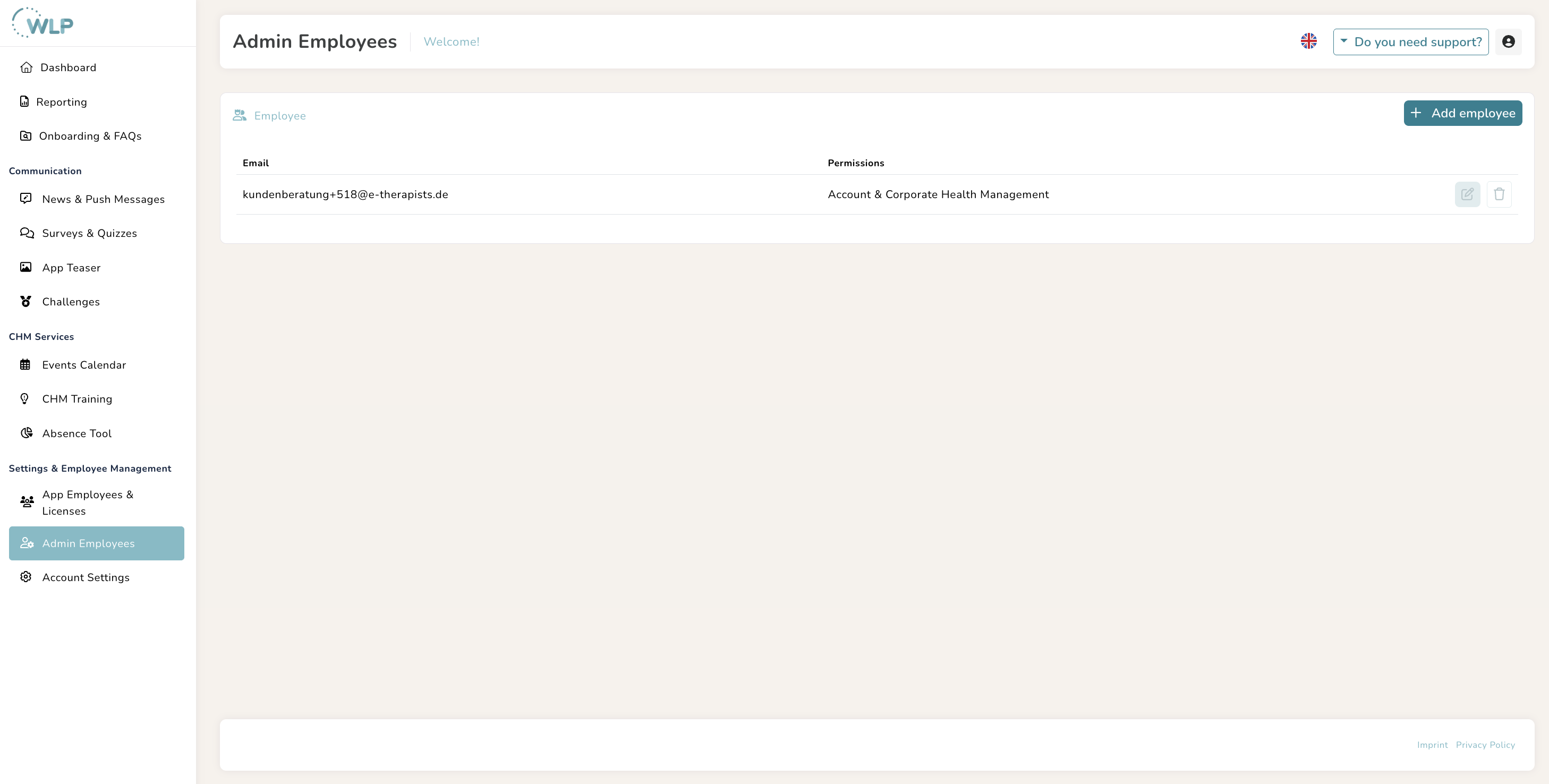
To create new users for the WLP Backoffice, navigate to the “Admin Employees” section in the “Settings & Employee Management” menu.
- Now click on “Add employee”
- Enter your password.
- In the input mask, enter the user's email address.
- Then select from the predefined user roles in the “Role” field or create custom access rights.
- You can now use the various switches to customize the access rights of each new user as you wish.
- Finally, click on “Save User.”
- An email will be sent to the person you added.
Note:
The login details for a new admin user are sent automatically.
As soon as you click on “Save user,” an automated email is sent to the user from TELUS Health. The invitation link is valid for 48 hours.
Was this article helpful?
That’s Great!
Thank you for your feedback
Sorry! We couldn't be helpful
Thank you for your feedback
Feedback sent
We appreciate your effort and will try to fix the article